

In the Customer Management portal, you can add additional contractors to your account as needed. The following features are available:
- A scenario overview involving an irrigation contractor, a maintenance contractor, and a landscape contractor.
- Manage all customer accounts from your master account.
- View the customers associated with your sub‑contractors, specific locations, or regions.
- Transfer customers to a sub‑contractor or assign them to a region.
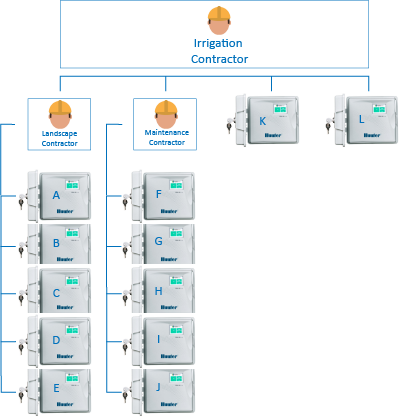
An irrigation contractor can add subcontractors by following the same process used to add customers. Below is an example showing how this structure works with three contractors:
- The irrigation contractor (master account) can view all customers and controllers shown in the illustration.
- The maintenance contractor has access only to controllers labeled F–J.
- The landscape contractor can view only the customers labeled A–E.

We have provided a second scenario where the irrigation contractor has created abbreviations to organize different groups. Changing the organization's name is key to understanding which contractor manages the different customers. For more information on editing the organization name, visit the Customer Details support page. Learn More
The example below shows the following:
- IC – Customers are managed by the Irrigation Contractor.
- LC – Customers are managed by the Landscape Contractor.
- LAC – Customers are managed by the Landscape Architect Contractor.
This account provides access to the sub‑contractor’s plan, the customers associated with the account, the personal controllers assigned to it, and the users.

If a customer is already listed under the master account, you can easily reassign that customer to one of your sub‑contractors or regional teams. This allows the appropriate team to manage the customer directly while the master account retains oversight.
- Tap My Customers.
- Select the Customer.
- Tap Edit.
- Tap Move customer to a sub-contractor.
- Select the appropriate Account.
- Tap Save.
Still need help? We're here.
Tell us what you need support with and we'll find the best solution for you.