

The WAND Module allows your X2 Controller to connect to the internet via a Wi-Fi router. Once connected, you can access and manage the controller with your smartphone, tablet, or computer. You can follow the in-app step instructions to connect the X2 controller to the Hydrawise app using the WAND device. Review the checklist below before starting the setup process.
| Check List | Description | |
|---|---|---|
| √ | Wi-Fi Signal | A medium to high 2.4 GHz signal strength is preferred to maintain a stable connection between the controller and the router. In some cases, a Wi-Fi extender should be installed to increase the signal. Learn More |
| √ | Serial Number | You will be prompted to enter the serial number during the online setup process when adding the controller to your Hydrawise account. This is located on the outside of the WAND device. |
| √ | WAND | Do not install the WAND device until step #7. |
| √ | Enable Bluetooth | Bluetooth on your smartphone must be enabled to complete the setup process to your home Wi-Fi network. |
IMPORTANT: If you have previously attempted to install and connect the WAND to your Wi-Fi network, we recommend performing a factory reset, removing the WAND, and then unpair or forgetting the device in your Bluetooth settings.
Download the Hydrawise App from the Apple® App Store or Google Play™ Store. Tap Sign Up.


- Enter your name and email. Tap Done.
- You will receive a welcome email from Hydrawise. Tap on Let's Get Started.
- Create a Password, then tap OK.
- Tap on Let's Get Started.
- Name your controller, then tap Continue (e.g., X2 Controller).
Enter the serial number manually or Scan the barcode on the WAND device. Remove the Wi-Fi cover from the X2 Controller and install the WAND module. Tap Continue.
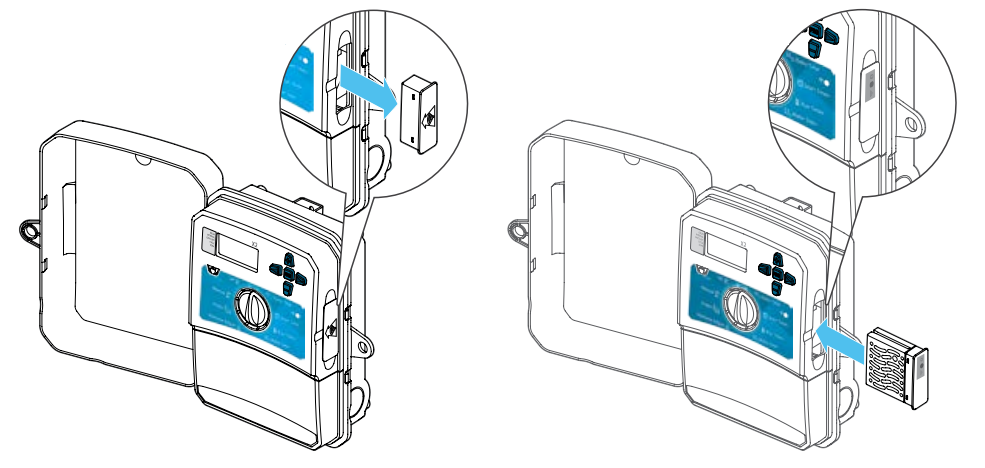
- Tap Connect to Wi-Fi.
- Tap on the Bluetooth (recommended) method.
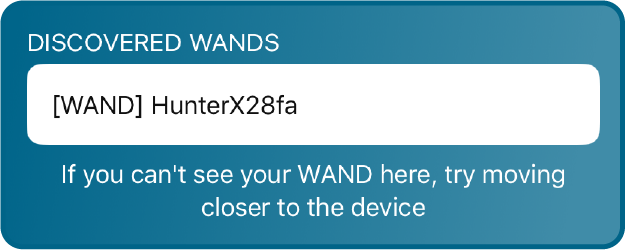
Tap on the Discovered WAND that displays the last three digits of the serial number.
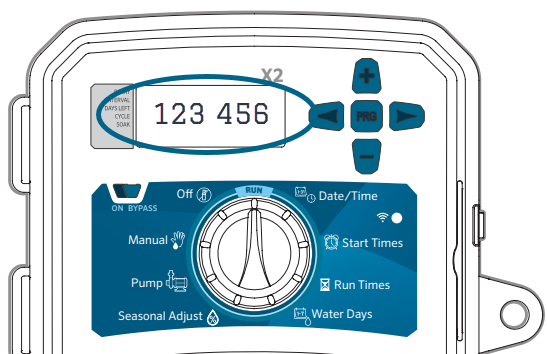
The X2 Controller will list a six-digit pairing code. Enter the code and tap Pair.
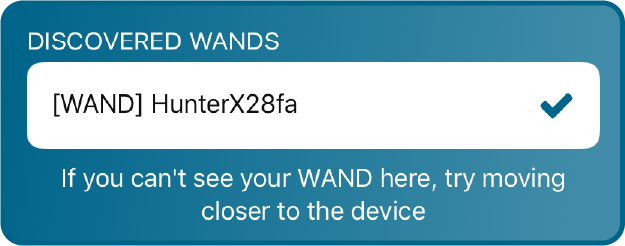
A blue checkmark will appear next to the Discovered WAND. Tap Scan For Wi-Fi Networks.
- A list of available networks will appear. Tap on your 2.4 GHz Wireless Network.
- Enter your Wi-Fi Password, then tap Continue.
- Once you're connected to your network, tap Continue to complete the setup wizard.
Still need help? We're here.
Tell us what you need support with and we'll find the best solution for you.